CAPS Installation Guide
Prerequisites
Before proceeding with the installation, ensure that your system meets the following requirements:
- Windows operating system (64-bit)(Tried on Windows expecting same will work for other systems as well)
- Internet connection
- Sufficient disk space (at least 5GB free)
Step 1: Download and Install Java 8
- Visit the Java SE 8 Downloads page.
- Accept the license agreement and download the Windows x64 JRE.
- Run the installer and follow the on-screen instructions.
-
Verify the installation by opening the Command Prompt (
Win + R, typecmd, and press Enter) and running:sh java -versionEnsure it displays Java 1.8.
Step 2: Download and Install Eclipse Modeling Tools
- Visit the Eclipse download page.
- Download the Eclipse Installer for Windows (64-bit).
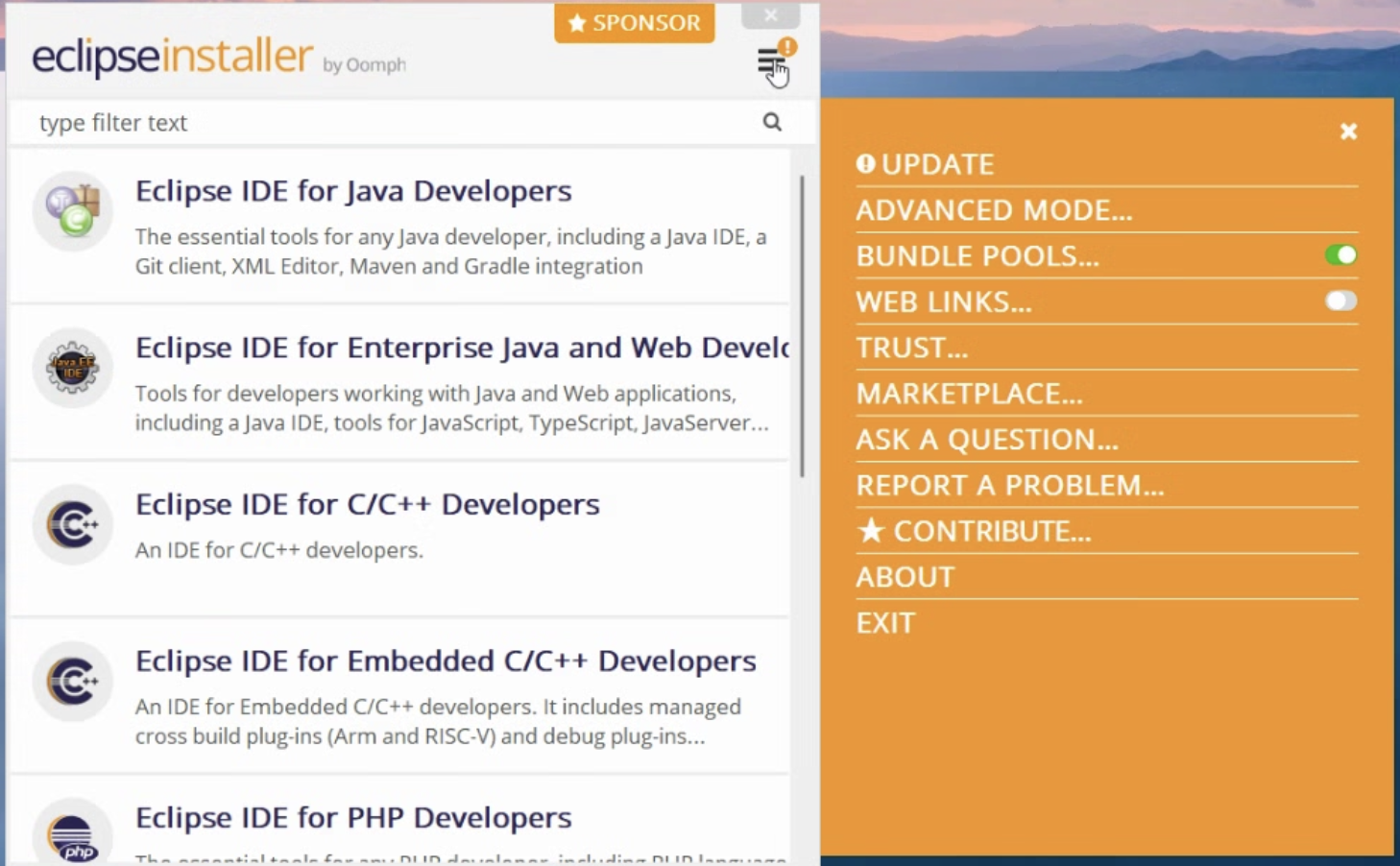
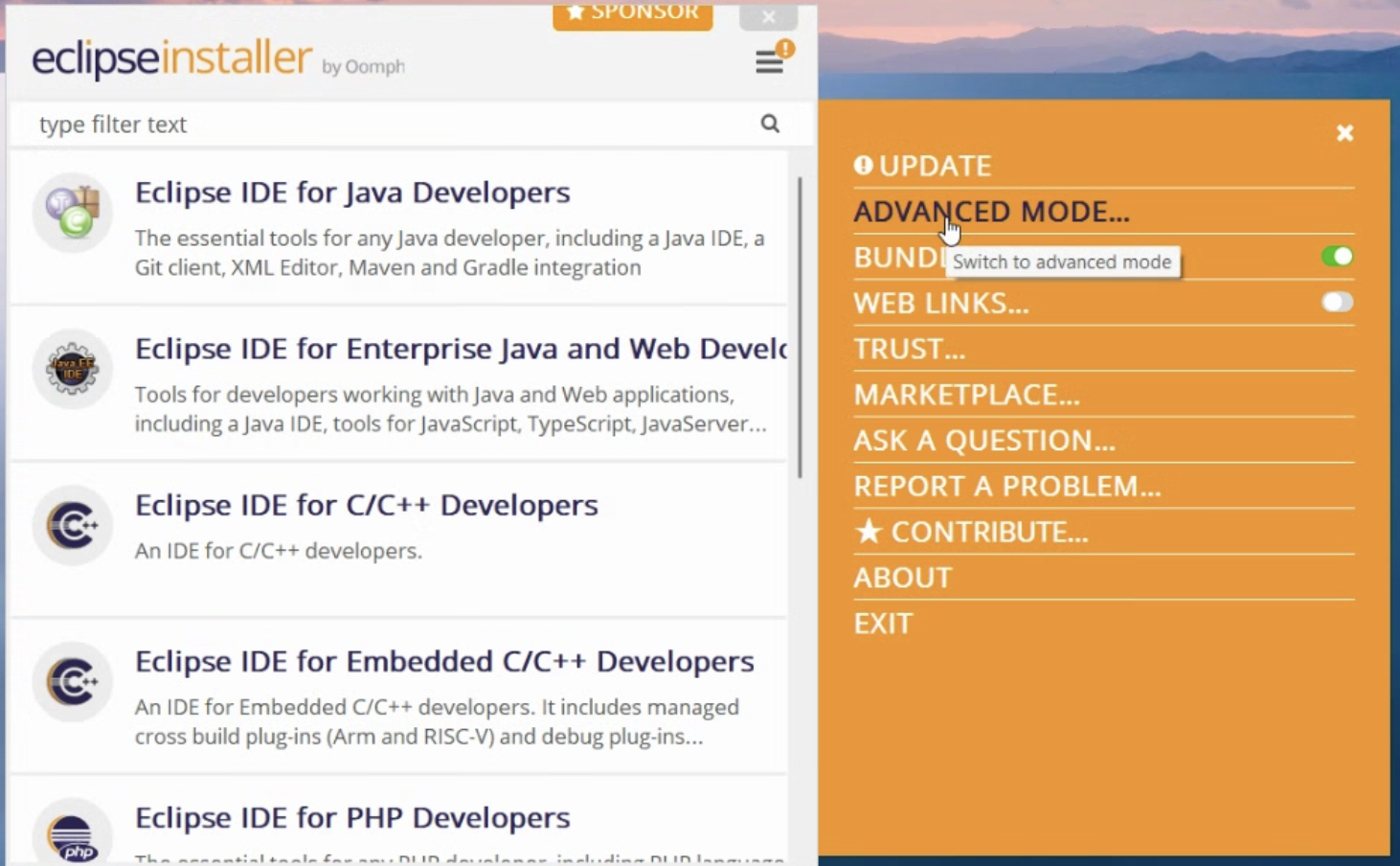
- Run the installer and select Advanced Mode.
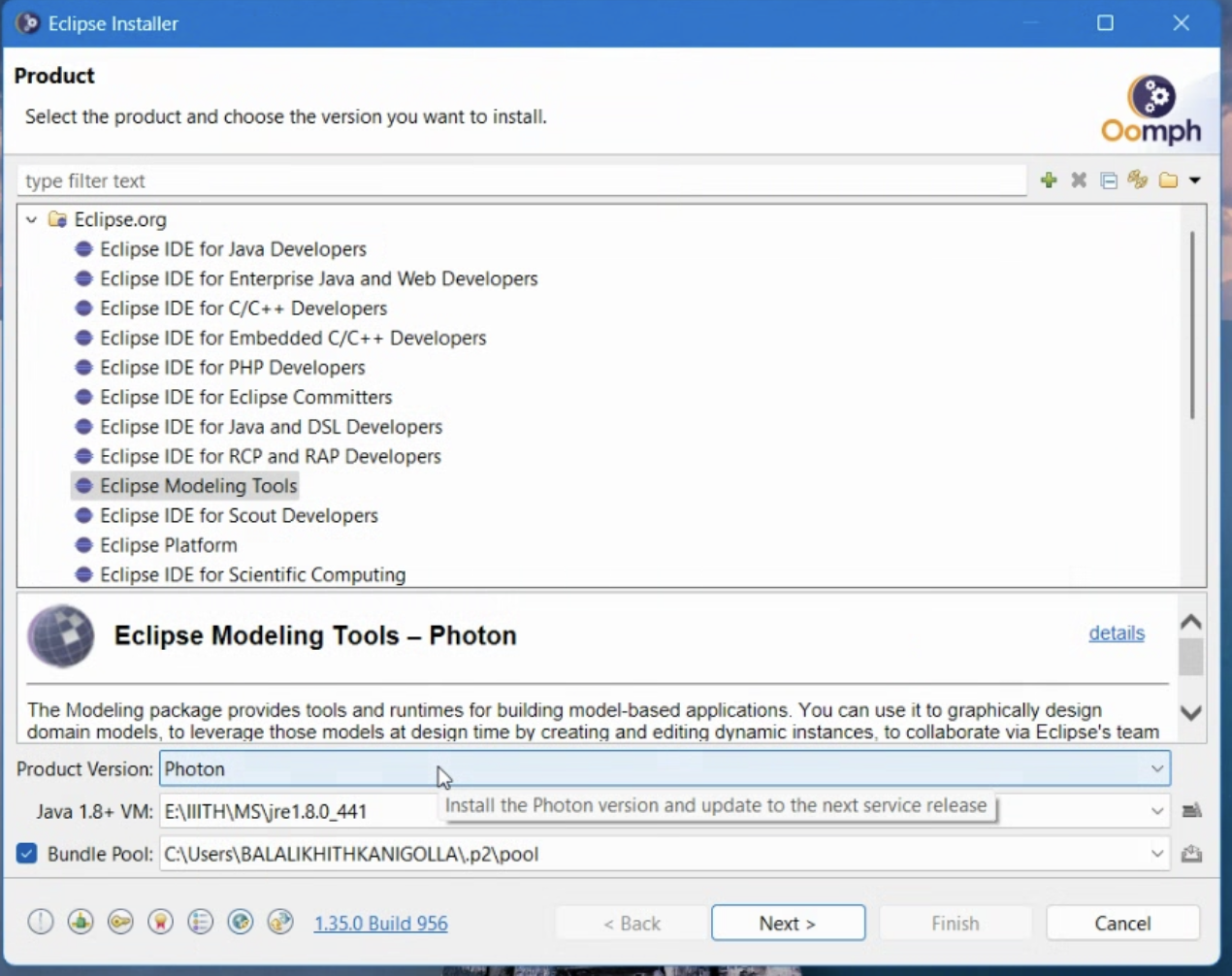
- Choose Eclipse Modeling Tools as the package.
- Select the Product version as Photon and proceed with the installation and select the Java 1.8
- Once installed, launch Eclipse.


Step 3: Install EMF
- Open Eclipse and go to
Help→Install New Software. - In the Work with: field, select All Available Sites.
- Search for EMF - Eclipse Modeling Framework.
- Check the box for Eclipse Modeling Framework SDK and proceed with the installation.
- Restart Eclipse when prompted.
Step 4: Install GMF Tooling
- Open Eclipse and navigate to
Help→Install New Software. - Click on
Add...and enter the following:- Name: GMF Tooling
- Location:
https://download.eclipse.org/epsilon/updates/gmf-tooling/
- Select GMF Tooling and click
Next. - Complete the installation and restart Eclipse.
Step 5: Install Epsilon
- Open Eclipse and go to
Help→Install New Software. - Click
Add...and enter:- Name: Epsilon
- Location:
https://download.eclipse.org/epsilon/updates/
- Select all the Epsilon components needed and proceed with the installation.
- Restart Eclipse when prompted.
Final Verification
After installation, verify that:
- Java 8 is installed (
java -versionIn Command Prompt) - Eclipse Modeling Tools launches without errors
- EMF, GMF Tooling, and Epsilon are installed under
Help→About Eclipse→Installation Details
This completes the setup process. You are now ready to use Eclipse for modeling and development!